

Guide
Yumbo 102: How to use SeeFood
One tap, three angles or a full 3D scan: the ways SeeFood can size up your plate, what each one is good for, and what Free and Premium get.
5 min read 5item160 XP
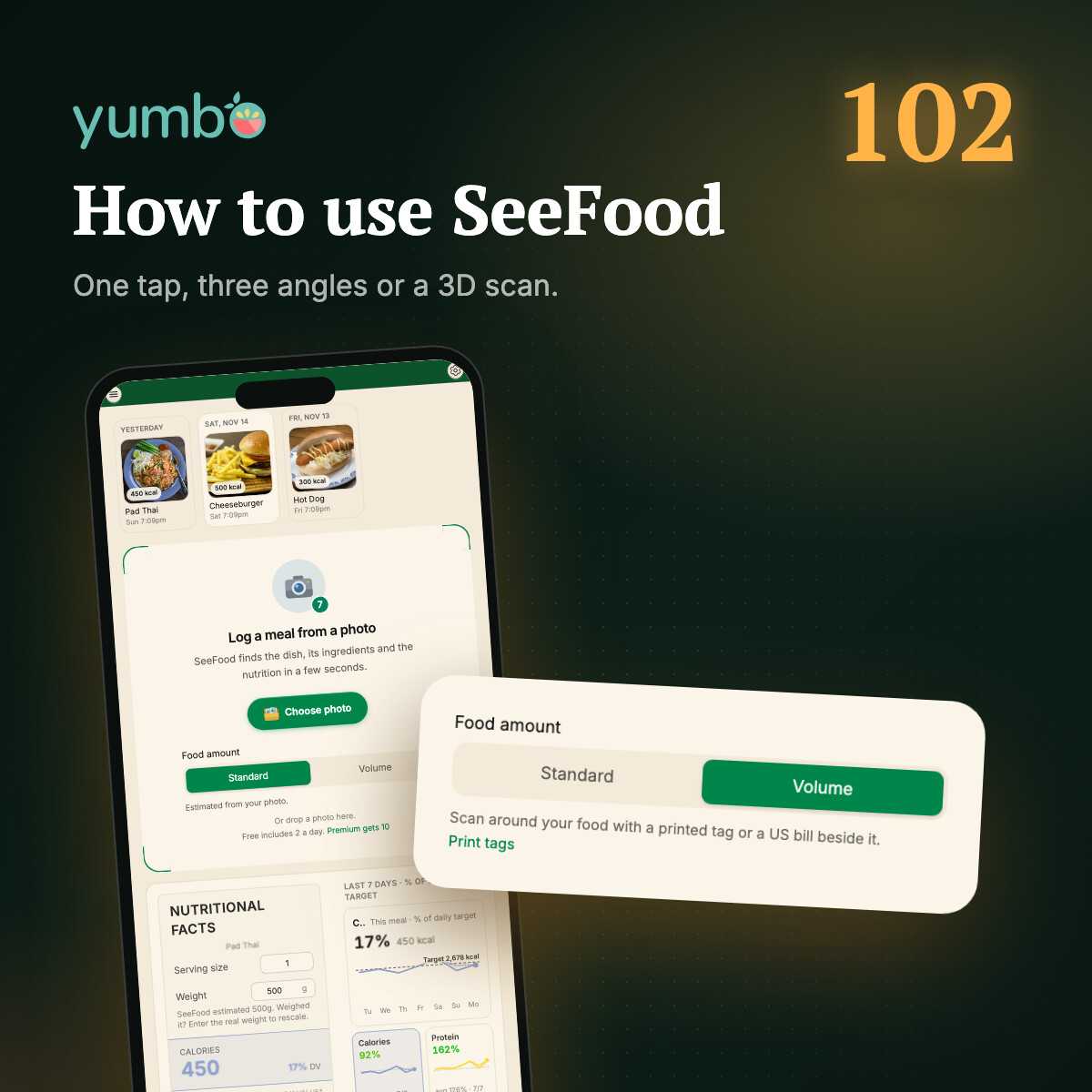
Welcome back to Yumbo 101. Last time we put Yumbo on your home screen and learned to get around. This time it's SeeFood: you take a photo of your meal, and it names the dish, lists the ingredients and logs the nutrition. New to SeeFood? The first SeeFood post covers the basics.
The trickiest part of logging food from a photo isn't what's on the plate. It's how much. SeeFood gives you a few ways to measure that, from a single tap to a full 3D scan. Pick one under Food amount before you open the camera, or switch right under the camera.
Standard: one tap
Point, tap the shutter, done. SeeFood estimates the amount from that one photo. It's the fastest way to log and fine for most everyday meals. You can also pick a photo you already took.
For the best guess, fill the corners of the frame with your food, shoot in good light and keep the whole plate in the shot.
Three angles: hold the shutter
A single photo can't see how tall a pile of rice is or what's hiding under the sauce. Give SeeFood more to go on: instead of tapping the shutter, hold it for a second. The camera takes three photos in a row, with a ring on screen counting down each one. Move the phone between shots:
- Top down. Straight above the plate, so every ingredient on top is in view.
- At 45°. Tilt down toward the plate from an angle, to show its height and layers.
- From the side. Low, at plate level, for what the other two can't see.
SeeFood looks at all three together. Got photos from earlier? Premium can also upload up to three of the same meal at once.
Volume: a 3D scan
This is the big one. Choose Volume and SeeFood builds a 3D model of your food on your phone, then measures how much space it takes up. To give it a sense of scale, put a printed tag or a US bill beside your plate. You can print the tags from the Food amount picker, or in Settings under SeeFood.
Then the screen walks you through it. Shoot from straight above and tap the food, or draw a loop around lots of small pieces. Tap in anything it missed, press Start, then follow the guide around the plate: at 45°, low to the left, and the other side. Hold still at each one until its bar fills. Here's the whole thing:
It takes a little longer than a tap, so save it for the meals where it counts: a big plate of pasta, a bowl you can't see the bottom of, or any time you want the closest number you can get. Volume works on Free too.
As far as we know, it's also something no other food tracker does. We went looking and couldn't find a single app that builds the actual 3D shape of your food to measure it. Most guess from one photo.